

How to Add Advanced Text Messaging to Microsoft Teams

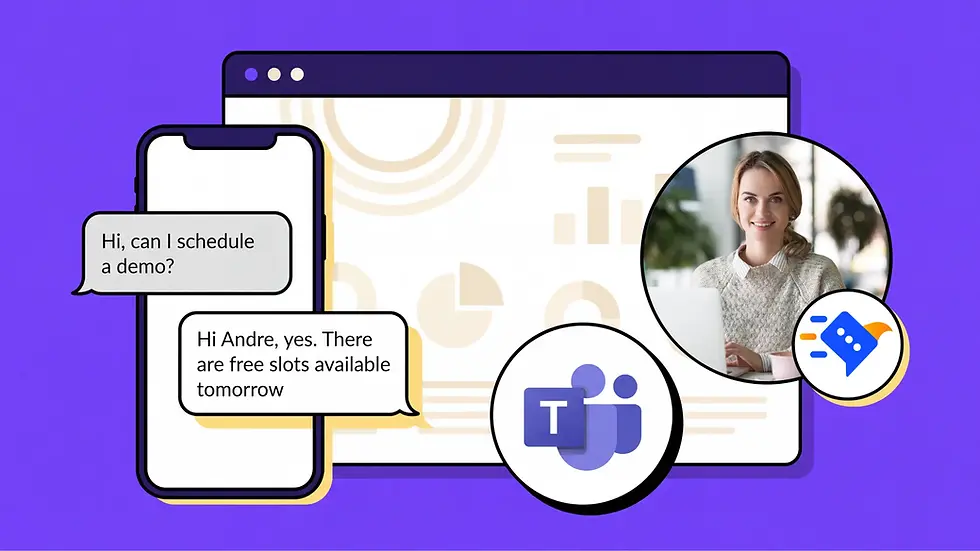
Microsoft Teams now supports native SMS for eligible Calling Plan numbers, which is a real shift from a few years ago when texting inside Teams meant a third-party add-on or nothing at all. But for most businesses, native SMS answers a narrower question than the one they're actually asking. It covers basic one-to-one texting. It does not cover the shared inboxes, group messaging, automation, and reporting that a real business texting workflow needs.
This guide walks through what Microsoft Teams supports natively, exactly how to turn it on, where it stops being enough, and how to add advanced text messaging on top of your existing Teams setup without ripping anything out.
Advanced business texting typically adds capabilities such as:
Shared team inboxes so more than one person can see and respond to a conversation
Group texting to reach multiple contacts at once
Message templates for common replies
Scheduled messages for reminders and follow-ups
Automated replies for after-hours or high-volume periods
Keyword-triggered responses (like auto-replying to "STOP" or "INFO")
MMS for photos, documents, and screenshots
Contact synchronization with existing directories
CRM integrations
Structured conversation management and assignment
Opt-out management that holds up to compliance review
Reporting and analytics on message volume and response times
Does Microsoft Teams Support Text Messaging
Yes. Microsoft Teams can send and receive SMS directly inside Teams Chat for users on an eligible Microsoft Calling Plan phone number in the United States (including Puerto Rico) and Canada.
That said, native Teams SMS isn't built to be a full business texting platform. Microsoft positions Teams SMS around conversational customer engagement, appointment-style notifications, and similar one-to-one communication rather than broadcasting, marketing, or team-based service workflows. If your business needs more than that, native SMS is a starting point, not a destination.
What You Need to Enable SMS in Microsoft Teams
Before anyone on your team can send a text from Teams, a few pieces need to be in place:
Microsoft Teams, with users on the appropriate license
Teams Phone, since SMS rides on the same phone number infrastructure
A Microsoft Calling Plan, because Direct Routing and Operator Connect numbers aren't eligible for native SMS
An eligible US or Canadian phone number
SMS brand registration, which identifies your organization to carriers
SMS campaign registration, which describes how you intend to use texting
SMS activation on the specific number once registration is approved
Brand and Campaign registration are part of the 10DLC (10-digit long code) framework carriers use to filter spam and verify legitimate senders. Microsoft's own campaign setup documentation was updated in May 2026, which is a good sign this is an actively maintained part of the platform rather than a feature Microsoft shipped and moved on from.
See What Microsoft Teams Is Missing
Native MS Teams SMS covers the basics. See how Falkon SMS adds shared inboxes, MMS, and automation on top of Teams.
How to Enable Native SMS in Microsoft Teams
Here's the actual process, step by step.
Step 1: Sign in to the Teams Admin Center: You'll need an account with the Teams Administrator, Teams Communications Administrator, or Teams Telephony Administrator role, since Brand and Campaign registration requires one of these.
Step 2: Go to Voice, then Service configuration, then SMS: This is where brand and campaign setup lives.
Step 3: Create your SMS brand: This registers your organization's identity with the carrier network.
Step 4: Register your SMS campaign: Describe the use case, for example appointment reminders or one-to-one customer conversations. Vague or overly broad campaign descriptions are a common reason approvals get delayed or rejected.
Step 5: Wait for approval: Approval timelines vary and have been running longer than usual due to demand, so plan for this step to take days to weeks, not minutes.
Step 6: Go to your phone numbers and enable SMS on eligible numbers: Each number will show an SMS status, such as Not Available or Not Activated, and you can only flip it on once it's eligible and your campaign is approved.
Step 7: Users can now send and receive SMS through Teams Chat: Once enabled, texting shows up as a normal one-to-one chat, the same place as everything else.
Why Businesses Need More Than Native Teams SMS
Native SMS is genuinely useful for solo, low-volume texting. It gets complicated fast the moment more than one person needs to be involved in a conversation, or the conversation needs to happen at any real scale.
Say a company wants multiple employees to manage the same customer conversations, send scheduled appointment reminders, reuse message templates instead of retyping the same reply, send a photo or PDF over MMS, track opt-outs properly, or connect texting to a CRM so conversations show up next to the rest of a customer's record. None of that is part of native Teams SMS today.
The Shared Inbox Problem
This is the gap that shows up most often in practice, and it's a structural one rather than a "not built yet" one. Discussions on Microsoft's own Q&A forum, including a February 2026 thread from a team migrating off Zoom Phone, lay out the issue clearly: native SMS isn't available on numbers assigned to a Resource Account, which is what a Call Queue uses. That means a Call Queue or shared support number can't get shared SMS the way it can get shared calling, so multiple agents can't see or respond to the same texting thread from one number.
For any team running shared support lines, dispatch, scheduling, or a group inbox, that single limitation usually rules out native SMS as a complete solution, independent of anything else on this list. This is exactly the gap a shared inbox for business texting is built to close.
What Is Advanced Text Messaging for Microsoft Teams
Advanced text messaging extends Microsoft Teams with business-focused SMS capabilities that go beyond basic one-to-one texting, layering shared inboxes, automation, MMS, and integrations on top of (or alongside) what Teams already does natively.
Here's how the two compare directly. Microsoft's Teams SMS capability is still evolving, so treat "Limited" below as the current state rather than a permanent one.
Capability | Native Teams SMS | Advanced Teams texting |
1-to-1 SMS | Yes | Yes |
Two-way texting | Yes | Yes |
Shared inbox | Limited | Yes |
Team texting | Limited | Yes |
Group messaging | Limited | Yes |
MMS | Depends on current support | Yes |
Templates | Limited | Yes |
Scheduled messages | Limited | Yes |
Automated replies | Limited | Yes |
Keyword replies | Limited | Yes |
CRM integrations | Limited | Yes |
Contact synchronization | Limited | Yes |
Opt-out management | Yes | Yes |
Reporting | Limited | Yes |
How to Add Advanced Text Messaging to Microsoft Teams
Instead of replacing Microsoft Teams, businesses can connect an advanced texting platform to their existing Teams workflow and keep everything in one place.
With a Microsoft Teams SMS integration like Falkon SMS, businesses can extend their Teams environment with features designed for business texting, while keeping Microsoft Teams as the hub for calls, chat, and files. The typical path looks like this:
Connect your Teams environment. Falkon SMS integrates directly, without requiring a separate app your team has to remember to open.
Configure your business number. Text-enable your existing business number, whether that's a landline, toll-free, or VoIP line your customers already have saved, or route an existing Microsoft Calling Plan number through Falkon for richer texting on the same line.
Enable SMS. Most numbers are texting-ready the same day or next business day.
Import or sync contacts so conversations connect to the people and records your team already works with.
Create shared texting workflows so a team, queue, or department can see and respond to the same conversation thread.
Set up templates and automated responses for common questions, after-hours coverage, and appointment reminders.
Start sending and receiving customer messages, with MMS, shared history, and reporting included from day one.
Microsoft Teams SMS vs Advanced Business Texting
Microsoft Teams is suitable for basic business SMS: one person, one conversation, low volume, US or Canada only. An advanced texting platform is better suited to organizations that need shared inboxes, automation, group messaging, integrations, and more sophisticated customer communication workflows.
The honest way to think about it isn't "Teams doesn't support texting." It's "native Teams SMS and advanced business texting solve different problems," and most growing teams eventually need the second one alongside the first.
Who Needs Advanced Text Messaging in Microsoft Teams
A few types of organizations tend to hit native SMS limits fastest:
Customer service teams handling overlapping conversations across shifts
Sales teams that need templates, scheduling, and CRM visibility
Home care agencies coordinating caregivers and family members
Professional services firms managing client communication
Multi-location businesses needing consistent texting across sites
Any team currently sharing a phone number for calls that also wants to share it for texting
Healthcare Organizations
Healthcare teams often need to text patients about appointments, forms, and follow-ups, frequently across multiple staff members covering the same patient. That means shared inbox visibility and compliance-grade recordkeeping aren't optional. Native SMS, built around a single user's personal chat, isn't designed for that kind of oversight. This is where HIPAA compliant texting becomes a requirement rather than a nice-to-have.
Law Firms
Law firms juggle client communication across attorneys, paralegals, and support staff, often on the same matter. A shared, searchable text history tied to a case, plus proper documentation of opt-ins and opt-outs, matters both for client service and for compliance. That's a team workflow problem, not a one-to-one texting problem.
Frequently Asked Questions
Can you send SMS from Microsoft Teams?
Yes. Microsoft Teams supports native SMS for users on an eligible Microsoft Calling Plan number in the US, Puerto Rico, and Canada, once Brand and Campaign registration is approved and SMS is activated on that number.
Does Microsoft Teams support two-way texting?
Yes, native SMS in Teams is two-way. Users can send and receive text messages inside the same one-to-one chat window they already use.
Can multiple employees share a Teams SMS inbox?
Not with native SMS. It's built around a single user's chat and doesn't support shared inboxes, and numbers assigned to Call Queues (Resource Accounts) aren't eligible for SMS at all. Advanced texting platforms like Falkon SMS add shared inboxes on top of Teams.
Can you send MMS from Microsoft Teams?
Native SMS support for MMS is limited and not consistently available. Advanced texting platforms support MMS, including photos, screenshots, and documents.
Can Microsoft Teams send group texts?
Native Teams SMS is designed for one-to-one conversations, not group messaging. Group texting requires an advanced texting solution.
Can I automate SMS messages in Teams?
Native SMS doesn't include automated replies, keyword triggers, or scheduled messages. These are core features of advanced business texting platforms.
Can I connect a CRM to Microsoft Teams texting?
Not through native SMS. CRM integration is one of the main reasons businesses add a dedicated texting platform on top of Teams.
What is the best Microsoft Teams SMS solution for businesses?
The right choice depends on whether you need to keep an existing business number, how many people need shared access to conversations, and whether MMS, automation, or CRM integration matter to your workflow. For teams that need all of the above without leaving Teams, a platform like Falkon SMS is built specifically for that.
What are the limitations of Microsoft Teams SMS?
Native Teams SMS is limited to the US and Canada, requires a Microsoft Calling Plan number, supports one-to-one conversations only, has limited or no MMS support, doesn't support shared inboxes or Call Queue numbers, and requires manual Brand and Campaign registration with no built-in automation for compliance.
Is Microsoft Teams texting HIPAA compliant?
Native Teams SMS doesn't carry HIPAA-specific certifications on its own, and standard SMS as a protocol has inherent limitations around encryption and audit trails. Healthcare organizations that need texting for anything touching protected health information should work with a platform built around HIPAA compliance, with clear documentation, rather than relying on native SMS by default.
Summary
Native SMS closed a real gap in Microsoft Teams, but it was built for individual, low-volume texting, not for teams. The moment more than one person needs to see a conversation, or you need MMS, templates, automation, or reporting, native SMS runs out of road. Adding an advanced texting platform like Falkon SMS on top of your existing Teams setup keeps your team working where they already are, while giving your business the shared inboxes, automation, and compliance features that customer-facing texting actually requires. Ready to see it in action? Start a free trial and connect your first number today.
Start Texting From Microsoft Teams Today
Keep your existing number, add MMS and shared inboxes, and stay in Teams. No credit card required to try it.


